Appointment List
Transport Coordinator (TC) and Warehouse Coordinator (WC)
I. Overview
The Appointment List page allows monitoring and managing the full lifecycle of dock appointments. Two main user groups with different permissions:
| Feature | Transport Coordinator (TC) | Warehouse Coordinator (WC) |
|---|---|---|
| View appointment list | Internal only | Internal + External |
| Edit appointment | Yes (REGISTERED, PENDING_ARRIVAL) | No |
| Manually cancel | Yes | Yes |
| Search by | Appointment ID, order code, driver phone | Appointment ID, dock name, supplier |
| Extra columns | — | Dock ID, Supplier |
One employee can hold both TC and WC roles simultaneously. The displayed interface and permissions differ depending on the active role.
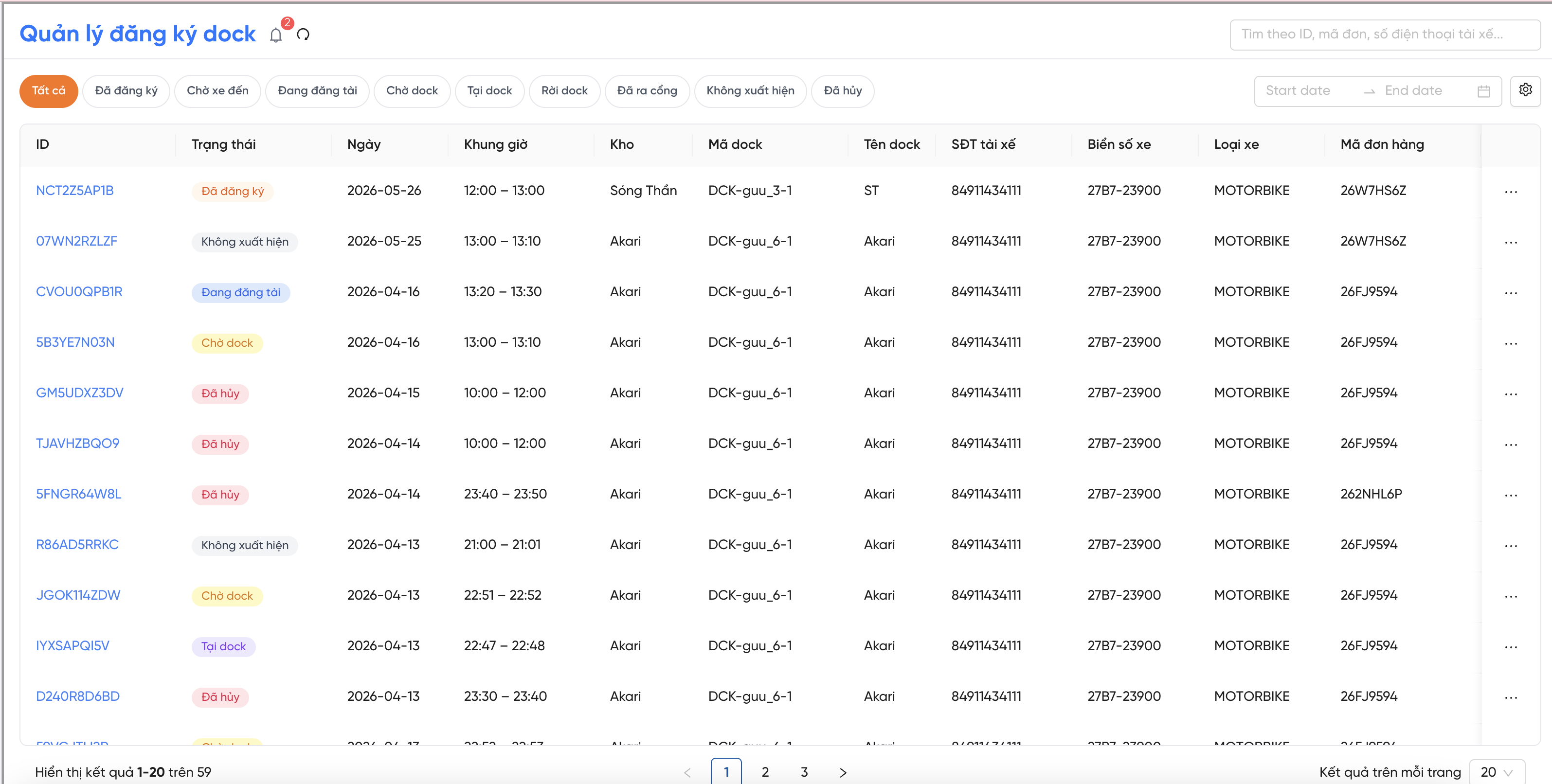
Appointment List screen
II. Appointment Statuses
Each dock appointment progresses through the following lifecycle statuses:
| Status | Meaning | Action buttons shown |
|---|---|---|
| REGISTERED | Appointment created; check-in window not yet open. | Edit / Cancel |
| PENDING_ARRIVAL | Within the allowed arrival window. | Edit / Cancel |
| CHECKING_IN | Vehicle has arrived; security guard has registered it. | Cancel |
| NO_SHOW | Vehicle did not arrive within the allowed window. | — |
| WAITING_FOR_DOCK | Vehicle passed the gate; awaiting dock assignment. | — |
| AT_DOCK | Vehicle is actively at the dock. | — |
| LEFT_DOCK | Vehicle has completed operations and left the dock. | — |
| CHECKED_OUT | Vehicle has exited the warehouse; lifecycle complete. | — |
| CANCELED | Appointment canceled by a user or the system. | — |
- PENDING_ARRIVAL is automatically set by the system when:
[slot start − early minutes]≤ current time ≤[slot start + late minutes], and the vehicle has not yet checked in. - NO_SHOW occurs when current time exceeds
[slot start + late minutes]and the vehicle still has not arrived.
III. Viewing and Searching Appointments
3.1. Filters and Search
| Tool | Description and usage |
|---|---|
| Filter by status | Select one or more statuses from the filter bar above the table. |
| Filter by date range | Select start and end dates → click 'Apply'. Filters by appointment_date. |
| Search (TC) | Enter text in the 'Search appointment ID, order code, driver phone' field → press Enter. Supports partial matching. |
| Search (WC) | Enter text in the 'Search appointment ID, dock name, supplier' field → press Enter. |
| Column settings | Click the settings icon → select/deselect columns → click 'Apply'. |
Both roles support case-insensitive search, automatic whitespace trimming, and partial value matching. If no results → displays 'No matching appointments found'.
3.2. View Appointment Details
Click the appointment ID link (blue) in the table to open the Details pop-up. The pop-up has 2 tabs:
| Tab | Content |
|---|---|
| General Info | Full appointment details: ID, status, date, time slot, warehouse, dock, driver, plate number, order, cargo type, notes, and creation/edit/cancellation history. |
| Tracking | Full event timeline in chronological order: Registration → Pending Arrival → Check-in → Waiting for Dock → Called → At Dock → Left Dock → Gate Out (or Canceled). |
The details pop-up (TC view) displays a warning: 'Please check in between [slot start − X min] and [slot start + Y min] to ensure operations run on time.' Notify the driver if needed.
IV. Edit an Appointment [Transport Coordinator only]
Only Transport Coordinators (TC) can edit appointments. Warehouse Coordinators cannot perform this action.
4.1. Conditions for Editing
The 'Edit' button in the Actions menu is only shown when the appointment is in:
REGISTEREDPENDING_ARRIVAL
Statuses from CHECKING_IN onwards cannot be edited. The system will display: 'Appointment is already in status [X]. Cannot edit!'
4.2. How to Edit
| Step | Action |
|---|---|
| 1. Open Actions menu | Click the 'Actions' button on the appointment row. |
| 2. Select 'Edit' | Click 'Edit' → The 'Edit Dock Appointment' pop-up opens with current data. |
| 3. Update fields | Update the fields as needed (see table below). |
| 4. Click 'Confirm' | The system validates and saves changes if valid. |
| 5. Done | Driver receives a notification on App Driver: 'Dock appointment [ID] has been updated'. |
4.3. Editable Fields
| Field | Notes |
|---|---|
Warehouse (appointment_warehouse_id) | Changing the warehouse resets the Time Slot field; it must be re-selected. |
Registration type (registration_type) | Internal or External. |
| Operation type | Inbound or Outbound. |
| Cargo type | Cold, Cool, Dry (multi-select). |
Appointment date (appointment_date) | The date the vehicle is scheduled to arrive. |
Time slot (appointment_time_slot_id) | Must be re-selected if the warehouse was changed. |
| Reference code | reference_type and reference_code (if applicable). |
| Notes | Additional notes. |
If the TC changes the warehouse to one outside the WC's assigned scope, the appointment will appear greyed out (disabled) in WC's view and will not update until the warehouse is corrected.
V. Cancel an Appointment
5.1. Manual Cancellation — Both TC and WC
The 'Cancel' button is only shown when the appointment is in one of these 3 statuses:
REGISTEREDPENDING_ARRIVALCHECKING_IN
| Step | Action |
|---|---|
| 1. Open Actions menu | Click the 'Actions' button on the appointment row. |
| 2. Select 'Cancel' | Click 'Cancel' → The 'Cancel Appointment' pop-up appears. |
| 3. Enter reason | Fill in the cancellation reason (required; cannot be left blank). |
| 4. Click 'Confirm' | The system validates and processes the cancellation. |
| 5. Done | Appointment moves to CANCELED. Driver receives a notification: 'Dock appointment [ID] has been canceled'. |
If the appointment has reached WAITING_FOR_DOCK or later, the system will display: 'Appointment is already in status [X]. Cannot cancel!' Contact the warehouse coordinator for exception handling.
5.2. Automatic Cancellation by System
The system automatically cancels appointments (no manual action needed) in 2 cases:
| Case | Details |
|---|---|
| Order canceled | When the linked order is canceled (status = CANCELLED), all dock appointments in REGISTERED / PENDING_ARRIVAL / CHECKING_IN are automatically canceled. |
| Order rebroadcast | When an order is rebroadcast with a new time, existing appointments in REGISTERED / PENDING_ARRIVAL / CHECKING_IN are canceled. |
Auto-cancellations are recorded with appointment_canceled_by_role = SYSTEM and require no reason. Drivers still receive a notification on App Driver.
VI. Tracking Tab — Operations Timeline
In the appointment details pop-up, the 'Tracking' tab displays the full event history in chronological order:
| Event | Performed by | Notes |
|---|---|---|
| Registered | Transport Coordinator | Timestamp of initial creation. |
| Edited | Transport Coordinator | A new line is recorded for each edit. |
| Canceled | TC / WC / System | Includes cancellation reason (if manually canceled). |
| Pending Arrival | System (automatic) | Start of the check-in window. |
| No Show | System (automatic) | Check-in window expired. |
| Checked In | Security Guard | Method: QR / code / barcode. |
| Waiting for Dock | Security Guard (gate in) | Gate entry confirmed. |
| Preparing | System / Warehouse Coordinator | Vehicle selected for priority slot. |
| Call Delayed | Warehouse Coordinator | Bumped by another vehicle. |
| Dock Changed | Warehouse Coordinator | Records new dock (original dock unchanged). |
| Called to Dock | Warehouse Coordinator | Speaker + App Driver notification sent. |
| At Dock | Warehouse Coordinator | Vehicle entry into dock confirmed. |
| Left Dock | Warehouse Coordinator | Vehicle has finished operations at dock. |
| Gate Out | Security Guard (check-out) | OPERATION_COMPLETED or OPERATION_FAILED. |
VII. Driver Notifications on App Driver
The system automatically sends notifications to the driver's App Driver in 2 cases:
| Event | Notification content sent to driver |
|---|---|
| Appointment edited | "Dock appointment [ID] has been updated" → Tap the notification to open appointment details. |
| Appointment canceled (manual or auto) | "Dock appointment [ID] has been canceled" → Tap the notification to open appointment details. |
VIII. Error Messages
| Error Message | Cause | Action |
|---|---|---|
| Appointment is already in status [X]. Cannot edit! | Status has passed PENDING_ARRIVAL; edit not allowed. | Cannot edit — escalate to senior coordinator for exception handling if needed. |
| Appointment is already in status [X]. Cannot cancel! | Status has passed CHECKING_IN. | Cannot manually cancel — contact warehouse coordinator for operational intervention. |
| Cancellation reason cannot be empty | The reason field was left blank. | Enter a reason before clicking 'Confirm'. |
| Input error / System error | Invalid data format or technical issue. | Check the entered information, try again. If the error persists, contact the technical team. |
IX. Actions Button Summary
| Option | Display condition | Who can use | Result |
|---|---|---|---|
| Track | All statuses | TC & WC | Opens the appointment details pop-up. |
| Edit | REGISTERED / PENDING_ARRIVAL | TC only | Opens the edit appointment pop-up. |
| Cancel | REGISTERED / PENDING_ARRIVAL / CHECKING_IN | TC & WC | Opens the cancel pop-up; requires a reason. |