Dock Dispatch
Warehouse Coordinator (Warehouse Dispatcher)
I. Overview
The Dock Dispatch page is the tool for warehouse coordinators to manage the full operations lifecycle of vehicles within the dock area. Core functions include:
- Track vehicle flow through 4 status columns: Waiting List → Preparing → Calling to Dock → At Dock.
- Call vehicles to dock via speaker and automatic App Driver notification.
- Prioritize vehicles and switch docks when issues arise.
- Confirm vehicle entry and exit from docks.
- Monitor real-time summary statistics and search registrations quickly.
This guide is for warehouse coordinators (Warehouse Dispatchers). Not applicable to security guards or drivers.
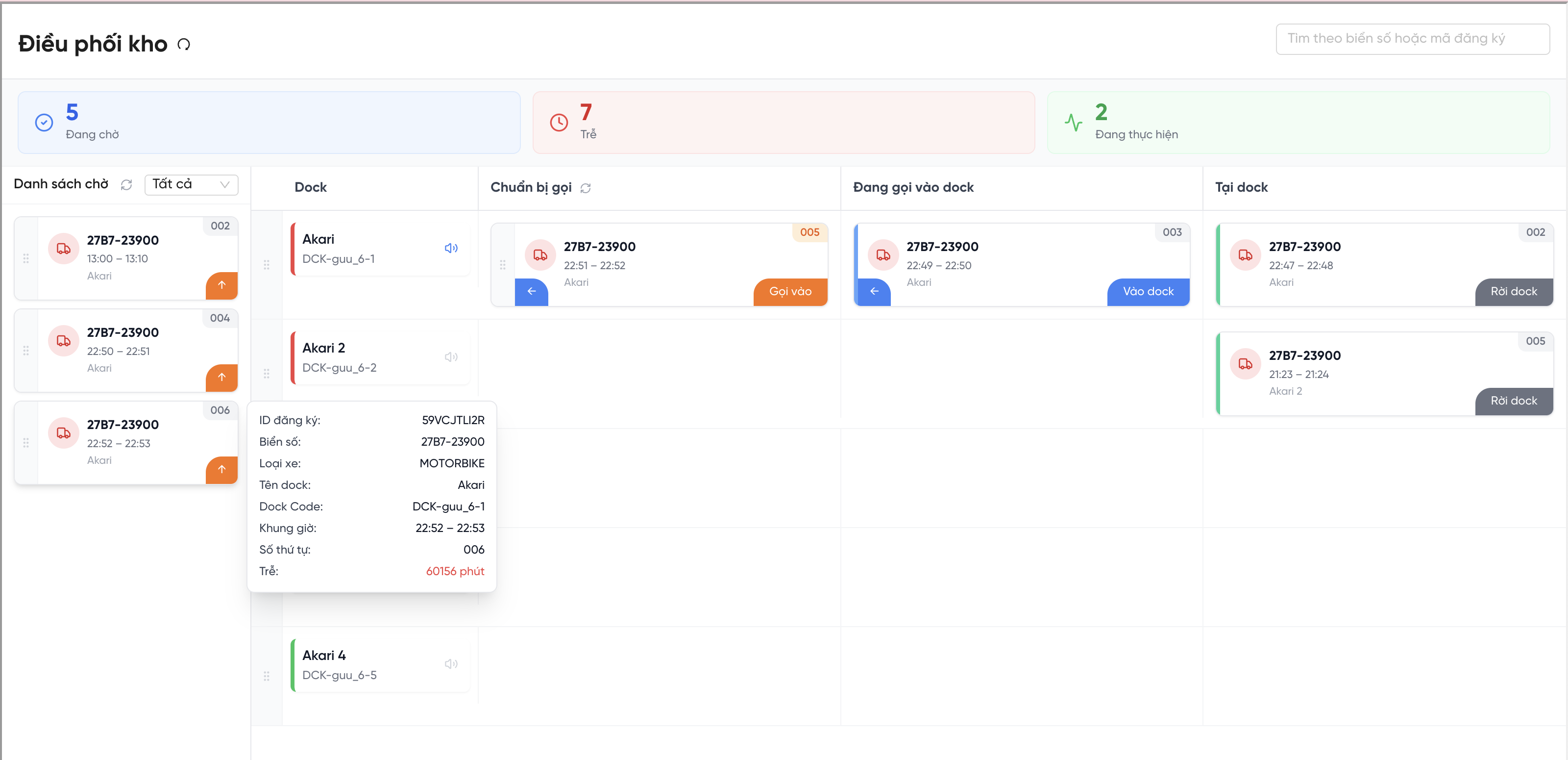
Dock Dispatch screen
II. Interface and Layout
2.1. Summary Statistics Area
The top of the page displays 3 real-time metrics:
| Metric | Meaning |
|---|---|
| Waiting | Total vehicles that have entered the gate (WAITING_FOR_DOCK) and are waiting to be dispatched to a dock. |
| Late | Vehicles past their slot time but not yet at a dock, or vehicles at a dock past their slot end time. |
| In Progress | Total vehicles currently at a dock (AT_DOCK). |
2.2. 4-Column Status Flow
Each dock lane displays 4 columns following the operational flow from left to right:
| Waiting List | Preparing | Calling to Dock | At Dock |
|---|---|---|---|
CHECK_IN_CONFIRMED / DOCK_CALL_DELAYED | PREPARING | DOCK_CALLED | ENTER_DOCK |
Vehicles move left to right: Wait → Prepare → Call → At Dock. Coordinators can intervene at any step.
2.3. Dock Lanes
Each dock in the warehouse is displayed as a separate dock lane. Lane status indicator:
- Red: The dock has a vehicle (≥1 registration card visible in the lane).
- Green: The dock is empty; no vehicle currently being processed.
You can drag and drop lanes to reorder them — the system saves the order per staff member.
2.4. Registration Cards
Each vehicle is represented by 1 card showing: plate number, time slot, dock name, queue number. The card icon turns red when the vehicle is late. Hover over a card to see: registration ID, vehicle type, minutes late.
III. Standard Operations Flow
Process for handling a vehicle through its full dock lifecycle:
| Step | Action |
|---|---|
| 1. Vehicle enters gate | Security guard confirms gate in → vehicle appears in the 'Waiting List' column (WAITING_FOR_DOCK). |
| 2. System auto-selects | System automatically moves the vehicle with the lowest queue number into the 'Preparing' column of the corresponding dock lane. |
| 3. Call to dock | Coordinator clicks 'Call' → Speaker announces vehicle plate + dock; driver's App Driver receives notification. |
| 4. Confirm dock entry | Coordinator clicks 'Enter Dock' after the vehicle physically enters the dock. |
| 5. Vehicle finishes | Coordinator clicks 'Leave Dock' when the vehicle has completed operations at the dock. |
| 6. Vehicle exits gate | Security guard performs gate out → vehicle lifecycle complete. |
IV. Calling a Vehicle to the Dock
4.1. System Auto-selects Vehicle into 'Preparing'
When the page is reloaded or 'Call' is clicked, the system automatically selects the priority vehicle for the 'Preparing' column based on:
- Vehicle in
CHECK_IN_CONFIRMEDorDOCK_CALL_DELAYEDstatus. - Lowest queue number for that dock.
- No other vehicle currently in
PREPARINGfor that dock.
You do not need to manually move vehicles into 'Preparing' — the system handles this automatically. Only intervene when prioritization or dock changes are needed.
4.2. Call Vehicle to Dock
| Step | Action |
|---|---|
| 1. Check vehicle | Confirm the vehicle in 'Preparing' is the next one to call. |
| 2. Click 'Call' | Click the 'Call' button on the registration card. |
| 3. Speaker announcement | Speaker auto-plays: "Vehicle with plate [XXX], please proceed to dock [Dock Name]" |
| 4. App Driver | Driver receives notification: "Registration [ID], please proceed to dock [Dock Name]" |
| 5. Card moves | Card moves to the 'Calling to Dock' column. |
To replay the speaker announcement without creating a new event, click the Speaker icon on the dock lane. This only re-sends the audio; it does not change the registration status.
4.3. Confirm Dock Entry
| Step | Action |
|---|---|
| 1. Vehicle arrives | Confirm the vehicle has physically arrived and entered the dock. |
| 2. Click 'Enter Dock' | Click the 'Enter Dock' button on the card in the 'Calling to Dock' column. |
| 3. Confirmed | Card moves to 'At Dock' column; status → AT_DOCK. |
4.4. Confirm Dock Exit
| Step | Action |
|---|---|
| 1. Vehicle finishes | Vehicle has completed operations inside the dock. |
| 2. Click 'Leave Dock' | Click the 'Leave Dock' button on the card in the 'At Dock' column. |
| 3. Done | Card disappears from the dock lane; status → LEFT_DOCK. |
V. Priority Dispatch and Dock Changes
Coordinators can intervene manually to handle exceptions. There are 3 scenarios:
Scenario 1: Prioritize Vehicle — NO Dock Change
To move a vehicle ahead of the current vehicle in 'Preparing', within the same dock.
| Action | Description |
|---|---|
| Option 1 | Click the 'Prioritize' button (orange up arrow ↑) on the card in 'Waiting List'. |
| Option 2 | Drag the card from 'Waiting List' into the 'Preparing' column of the same dock lane. |
Confirmation pop-up: "Do you want to prioritize queue #[X] before queue #[Y]?" → Click Confirm to proceed | Click Cancel to abort.
After confirmation: The displaced vehicle returns to 'Waiting List'; the prioritized vehicle moves to 'Preparing'. Toast: 'Prioritization successful!'
Scenario 2: Prioritize Vehicle + Change Dock
To both prioritize a vehicle and move it to a different dock (the new dock must not have a vehicle already in 'Preparing').
| Action | Description |
|---|---|
| Option 1 | Drag the card from 'Preparing' to a different dock lane. |
| Option 2 | Drag the card from 'Waiting List' to the 'Preparing' column of a different dock lane. |
Confirmation pop-up: "Do you want to move queue #[X] to dock [New Dock] and prioritize #[X] before #[Y]?"
After confirmation: System logs DOCK_CHANGED + PREPARING events. Toast: 'Prioritization and dock change successful!'
A dock change only records an operational event (log); it does not update the original dock in the initial registration record. The original dock remains unchanged in the registration.
Scenario 3: Change Dock — NO Priority Change
When the current 'Preparing' dock has an issue and the vehicle needs to move to another empty dock.
| Action | Description |
|---|---|
| Action | Drag the card from 'Preparing' to another empty dock lane (no vehicle in PREPARING). |
Confirmation pop-up: "Do you want to move queue #[X] to dock [New Dock]?"
After confirmation: System logs DOCK_CHANGED event. Vehicle remains in 'Preparing' but in the new dock lane.
VI. Cancel Priority and Return to Waiting List
6.1. Cancel Priority for Vehicle in 'Preparing'
Applies when a vehicle was manually prioritized (queue_priority_level = 1) and needs to be reverted.
| Action | Description |
|---|---|
| Option 1 | Click the 'Return' button (blue left arrow ←) on the card in 'Preparing'. |
| Option 2 | Drag the card from 'Preparing' back to 'Waiting List'. |
Confirmation pop-up: "Do you want to move queue #[X] back to the waiting list?"
After confirmation: Vehicle returns to 'Waiting List'; system automatically selects the next vehicle. Toast: 'Action successful!'
6.2. Return Vehicle from 'Calling to Dock' to Waiting List
Applies when the vehicle has been called but hasn't entered the dock yet and needs to return to the queue.
| Action | Description |
|---|---|
| Action | Click the 'Return' button (blue left arrow ←) on the card in 'Calling to Dock'. |
Confirmation pop-up: "Do you want to move queue #[X] back to the waiting list?"
After confirmation: Vehicle returns to 'Waiting List'; system auto-selects the next vehicle. Toast: 'Action successful!'
VII. Search Registrations
Enter a keyword in the search field and press Enter. The system searches by:
- Registration ID (
dock_appointment_id) — must enter the exact full value. - Plate number — must enter the exact full value.
- Found: The registration card is highlighted with a red border in the dock lane.
- Not found: No red border appears; check the search keyword.
- Clear keyword: All cards return to default display.
VIII. Error Message Handling
| Error Message | Cause | Action |
|---|---|---|
| Cannot perform action. Please clear the slot first! | The target dock already has another vehicle in PREPARING or manually prioritized. | Wait for the current vehicle to be called, or cancel its priority first, then retry. |
| Cannot perform action! | Validation conditions not met (wrong status, vehicle ineligible). | Check the vehicle's status on the card; reload the page if needed. |
| System error (red toast) | Server-side technical issue. | Retry after a few seconds. If the error persists, contact the technical team. |
IX. Driver Notifications on App Driver
When the coordinator clicks 'Call', the system automatically sends a notification to the driver's App Driver:
| Channel | Content |
|---|---|
| Warehouse speaker | "Vehicle with plate [Plate Number], please proceed to dock [Dock Name]" |
| App Driver notification (popup) | "Registration [Registration ID], please proceed to dock [Dock Name]" |
| App Driver notification list | Appears in the notification list; tap to open appointment details. |
X. Buttons and Actions Summary
| Button | Location | Function |
|---|---|---|
| Prioritize (↑ orange) | Waiting List | Moves vehicle to 'Preparing' with higher priority than the current vehicle. |
| Call | Preparing | Plays speaker + sends app notification; moves to 'Calling to Dock'. |
| Return (← blue) | Preparing / Calling to Dock | Returns vehicle to 'Waiting List'. |
| Enter Dock | Calling to Dock | Confirms vehicle has entered dock; moves to 'At Dock'. |
| Leave Dock | At Dock | Confirms vehicle has left dock; ends dock operations. |
| Speaker (icon) | Dock lane | Replays speaker announcement without creating a new event. |
| Reload (icon) | Waiting List | Refreshes the list; system re-selects the priority vehicle. |