Gate Management
Security Guard / Gatekeeper using the Gate Management page
I. Overview
The Gate Management page is the tool for warehouse security guards to perform:
- Register vehicles by entering a registration code or scanning the driver's QR/Barcode.
- Confirm vehicle gate entry (Check-in) when the vehicle arrives at the warehouse.
- Confirm vehicle gate exit (Check-out) when the vehicle completes operations and leaves.
- Look up the daily vehicle entry/exit history.
All actions are performed on the Gate Operations tab and the History tab of the Gate Management page on the web portal.
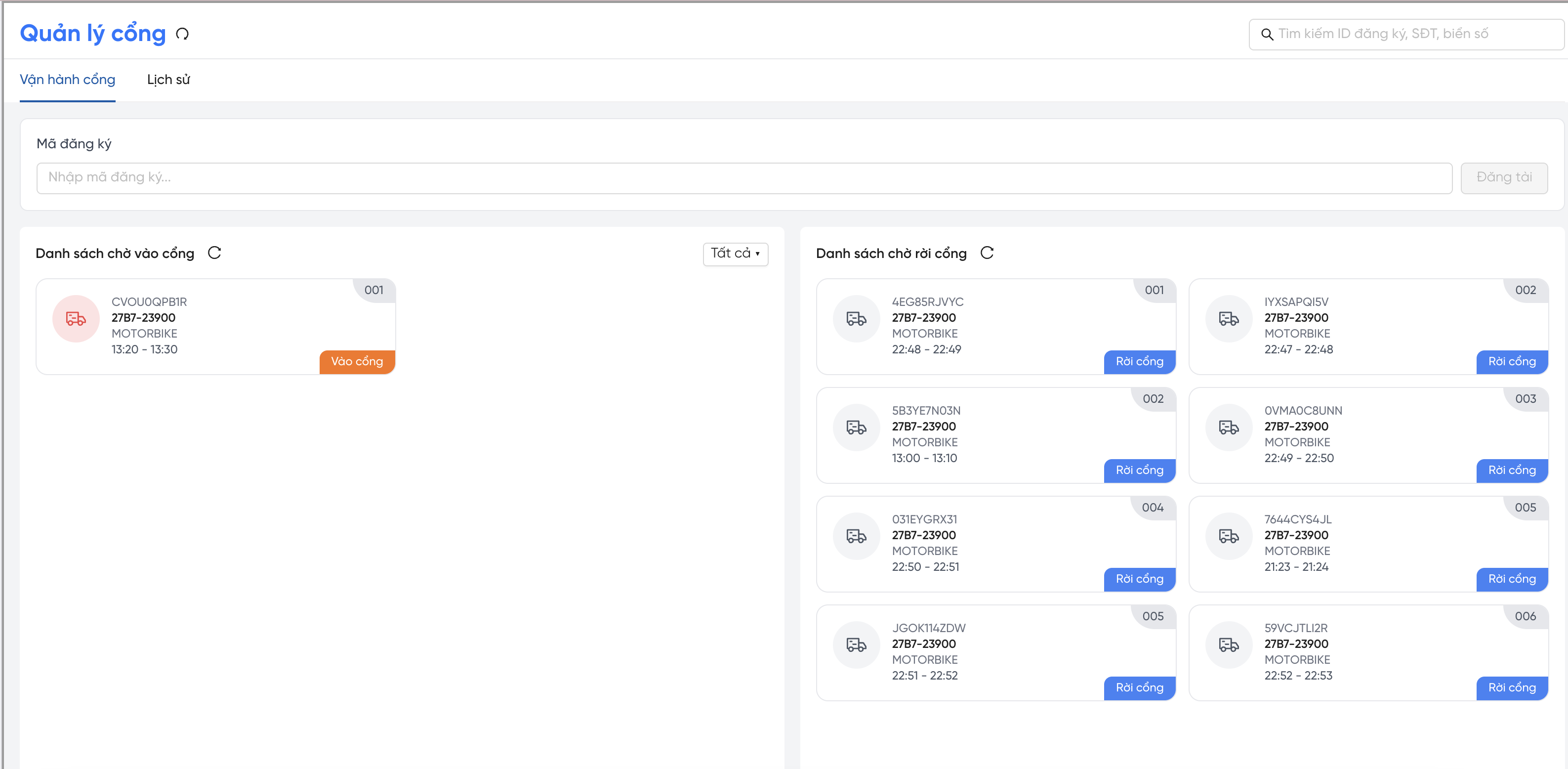
Gate Management screen
II. Vehicle Check-in Registration
Vehicle registration records the vehicle's arrival at the warehouse and assigns a queue number (STT). There are 2 methods:
Method 1: Scan QR / Barcode
| Step | Action |
|---|---|
| 1. Ask the driver | Request the driver to open App Driver → appointment details → display QR code. |
| 2. Scan the code | Use a QR or Barcode scanner on the Gate Management screen. |
| 3. System validates | The system automatically checks the code's validity and timing. |
| 4. Done | If valid → the 'Appointment Details' pop-up appears; vehicle is assigned a queue number. |
Method 2: Enter Registration Code Manually
| Step | Action |
|---|---|
| 1. Get code from driver | Ask the driver to provide their registration code (dock_appointment_id). |
| 2. Enter the code | Type the code in the 'Registration Code' field on the Gate Operations tab. |
| 3. Click 'Register' | Click the 'Register' button; the system validates the code. |
| 4. Done | If valid → the 'Appointment Details' pop-up appears; vehicle is assigned a queue number. |
Vehicles can only be registered within the allowed time window. Arriving too early or too late relative to the registered slot will be rejected. See the error handling section at Section VI.
III. Gate In Management (Check-in)
3.1. Waiting for Gate In List
After successful registration, the vehicle appears in the Waiting for Gate In list with status CHECKING_IN. Information shown on each card:
| Information | Description |
|---|---|
| Grey icon | Vehicle has not yet reached the slot start time. |
| Red icon | Vehicle has reached or passed the slot start time — needs priority attention. |
| Registration ID | The dock appointment ID. |
| Plate number | Registered vehicle plate. |
| Vehicle type | Type of vehicle. |
| Time slot | Slot start – end time. |
| Queue number (STT) | Vehicle's position in the warehouse queue. |
Cards with a red icon have reached or passed their scheduled time — process them first. Use the Late filter to quickly find these vehicles.
3.2. Perform Gate In (Vehicle Enters Gate)
| Step | Action |
|---|---|
| 1. Verify vehicle | Confirm the physical plate number matches the card information. |
| 2. Click 'Gate In' | Click the 'Gate In' button on the card or in the Appointment Details pop-up. |
| 3. Success | Toast 'Gate In successful!' appears → card disappears from the waiting list. |
| 4. Vehicle enters | Vehicle moves to the 'Waiting for Gate Out' list with status WAITING_FOR_DOCK. |
3.3. Filter the Waiting for Gate In List
| Filter option | Result shown |
|---|---|
| All | All vehicles with status CHECKING_IN (default). |
| Late | Only vehicles whose slot start time ≤ current time (late or on-time vehicles). |
IV. Gate Out Management (Check-out)
4.1. Waiting for Gate Out List
This list shows all vehicles currently inside the warehouse, including those with statuses:
| Status | Meaning |
|---|---|
| WAITING_FOR_DOCK | Vehicle entered gate; waiting to be assigned a dock. |
| AT_DOCK | Vehicle is at the dock and operations are in progress. |
| LEFT_DOCK | Vehicle has left the dock; waiting to exit the gate. |
4.2. Perform Gate Out (Vehicle Exits Gate)
| Step | Action |
|---|---|
| 1. Verify vehicle | Confirm the physical plate number matches the list. |
| 2. Click 'Gate Out' | Click the 'Gate Out' button on the card or in the Appointment Details pop-up. |
| 3. Success | Toast 'Gate Out successful!' appears → card disappears from the waiting list. |
| 4. Record result | System automatically records: OPERATION_COMPLETED (finished) or OPERATION_FAILED (never reached dock). |
- If vehicle left before reaching a dock (
WAITING_FOR_DOCK) → system recordsOPERATION_FAILED. - If vehicle passed through a dock (
AT_DOCK/LEFT_DOCK) → recordsOPERATION_COMPLETED.
V. History Lookup
5.1. History Tab
The History tab shows all vehicles that were registered during the day (including those already checked out or canceled after registration). Information shown:
- Registration ID, status, registration date, time slot.
- Driver phone, plate number, vehicle type.
5.2. View Details in History
Click the Registration ID (link) in the History tab to view the full operations timeline:
| Information | Description |
|---|---|
| Created by | Staff member who created the appointment and timestamp. |
| Edited by | Staff member who edited it (if applicable). |
| Canceled by | Role and reason for cancellation (if canceled). |
| Checked in | Guard who performed check-in, timestamp, and method (QR / code / barcode). |
| Gate In | Guard who confirmed gate entry and timestamp. |
| Gate Out | Guard who confirmed gate exit and timestamp. |
5.3. Search
Enter a keyword in the 'Search by registration ID, phone, plate number' field and press Enter:
- Search by registration ID, driver phone number, or plate number.
- Case-insensitive; supports partial matching (no need to enter the full value).
- If nothing found → displays 'No matching registrations found'.
5.4. Filter by Status and Date Range
- Filter by status:
CHECKING_IN,WAITING_FOR_DOCK,AT_DOCK,LEFT_DOCK,CHECKED_OUT,CANCELED. - Filter by date range (
appointment_date): select start and end date → click Apply.
VI. Error Message Handling
6.1. Errors During Vehicle Registration
| Error / Message | Cause | Action |
|---|---|---|
| Registration not found! | Registration code is incorrect or not in the system. | Ask the driver to check the code in App Driver and provide it again. |
| Registration has been canceled! | The appointment was canceled by a coordinator. | Inform the driver to contact Transport Coordination for assistance. |
| Registration has expired! | Vehicle arrived too late; status changed to NO_SHOW. | Contact coordination for exception handling if needed. |
| Vehicle already registered! | Vehicle was already registered previously. | Find the vehicle in the 'Waiting for Gate In' list by plate number to process gate in. |
| Check-in window not open yet! | Vehicle arrived too early relative to the allowed window. | Ask the vehicle to wait and return when the check-in window opens. |
| Check-in date has not arrived! | Today is not the registration date. | Verify the appointment date with the driver. |
6.2. Errors During Gate In
| Error / Message | Cause | Action |
|---|---|---|
| Warning: Appointment has been canceled — vehicle cannot enter! | The appointment was canceled after registration. | Click 'Understood' to dismiss; inform the driver to contact coordination. |
VII. Operations Summary
Standard workflow during a security guard's shift:
| Step | Action | Result | Status after |
|---|---|---|---|
| 1 | Register vehicle | Vehicle appears in Waiting for Gate In list; queue number assigned. | CHECKING_IN |
| 2 | Click 'Gate In' | Toast 'Gate In successful!'; vehicle moves to Waiting for Gate Out. | WAITING_FOR_DOCK |
| 3 | Vehicle operates inside | (Dock management handles this) | AT_DOCK → LEFT_DOCK |
| 4 | Click 'Gate Out' | Toast 'Gate Out successful!'; vehicle removed from waiting list. | CHECKED_OUT |