Warehouse Configuration
Warehouse Coordinator (WC)
I. Overview
When many vehicles arrive at a warehouse at different times, coordinators struggle to manage multiple vehicles simultaneously. Each warehouse has multiple loading/unloading bays (docks). This feature helps all stakeholders optimize operations and dispatch.
Access URL: https://appstg.onwheel.io/
On the sidebar → select Dock Management
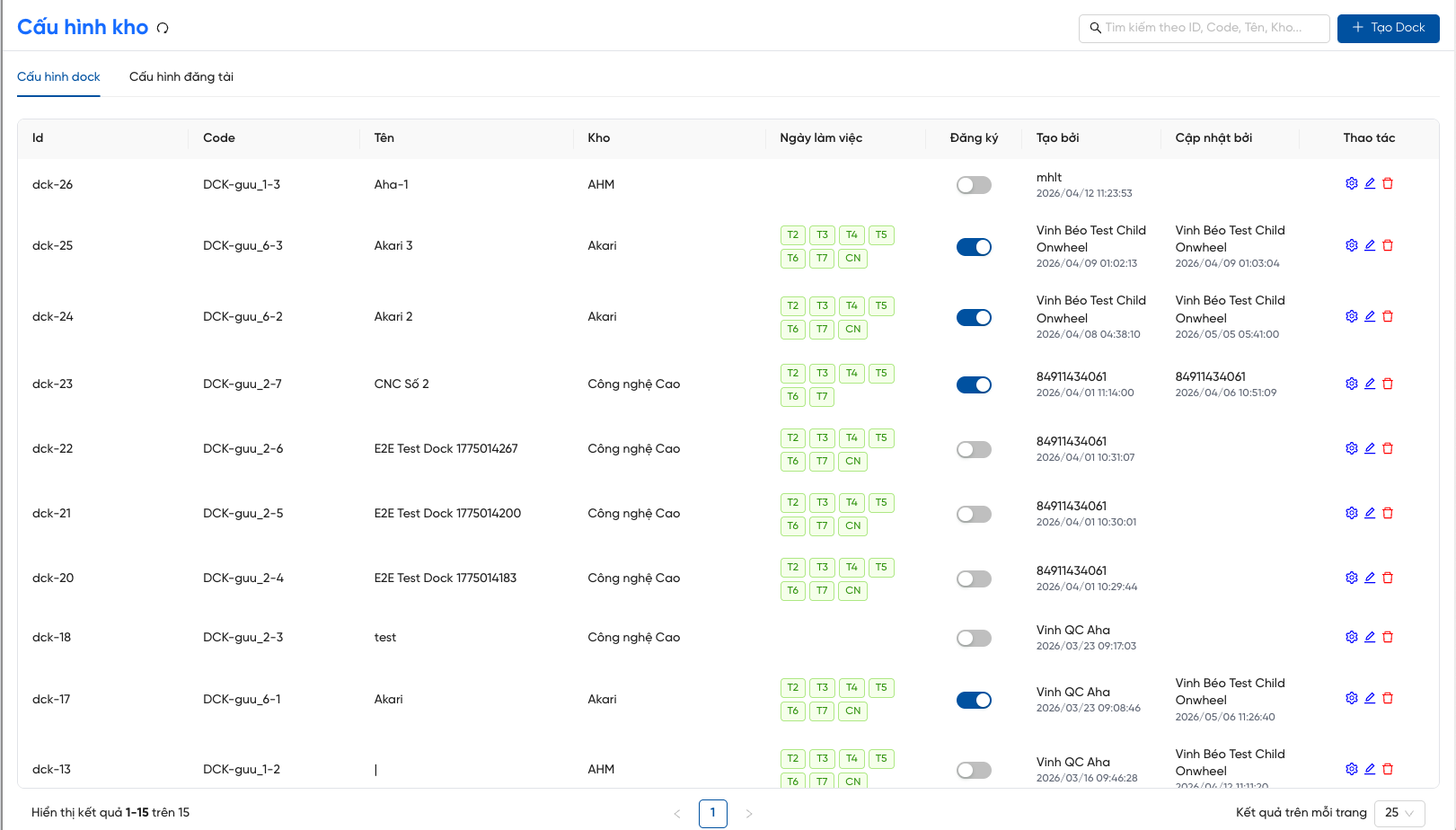
Figure 1: Dock Management overview screen
The screen allows Dock Configuration and Check-in Configuration.
II. Create a Dock
| Step | Action |
|---|---|
| 1 | Click 'Create dock' — Button is in the top-right corner. The Create New Dock pop-up appears, pre-filled with the warehouse name linked to the logged-in account. |
| 2 | Enter dock name and confirm — Fill in the dock name (e.g., Dock A, North Gate 1…) then click Create. The new dock appears at the top of the list. |
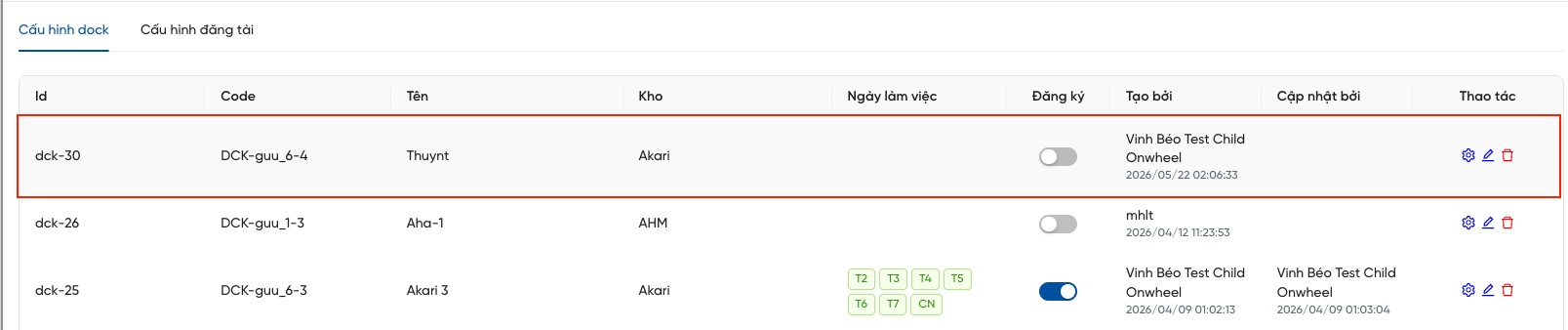
Figure 2: New dock displayed at the top of the list
The Actions column allows:
| Action | Function |
|---|---|
| Configure | Open the interface to set working days and time slots for the dock. |
| Edit | Rename the dock. |
| Delete | Remove the dock from the system (confirmation pop-up shown). |
III. Configure a Dock
Each dock is configured by working days and time slots.
Working Days Configuration
Select the days of the week the dock operates (Mon, Tue, …) matching the warehouse's actual schedule.
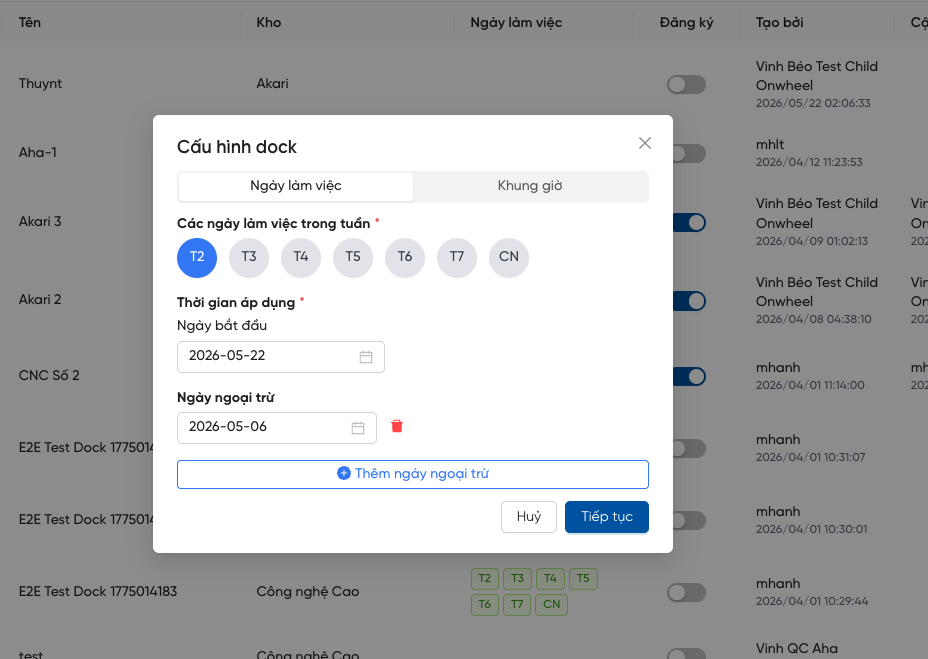
Figure 3: Working days configuration pop-up
Time Slot Configuration (Shifts)
Each time slot corresponds to one shift. The slot duration is the time a vehicle is allowed to occupy a dock.
Shift-based time slot configuration: shifts must not overlap. Ensure each shift ends before the next one begins.
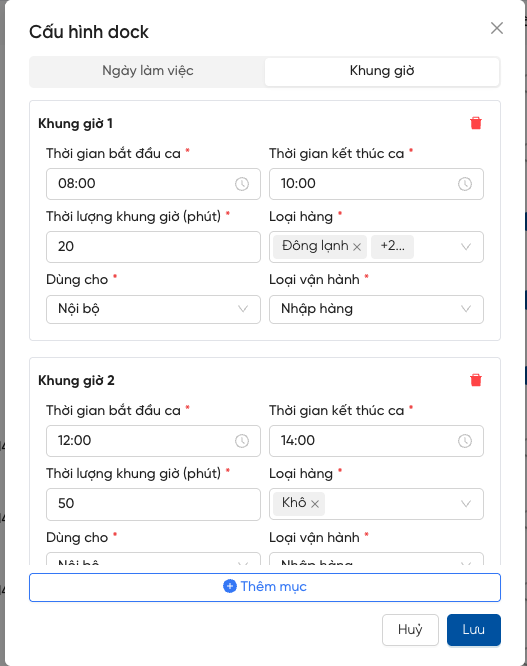
Figure 4: Dock time slot configuration
After configuring, toggle the Registration switch to ON to activate the dock.
Note: Only toggle ON after fully configuring working days and time slots. Activating without a valid configuration may cause errors when vehicles attempt to register.

Figure 5: Toggle Registration to activate the dock
IV. Check-in Configuration
Goal: Configure how early or late a vehicle is allowed to check in relative to the start of its registered time slot.
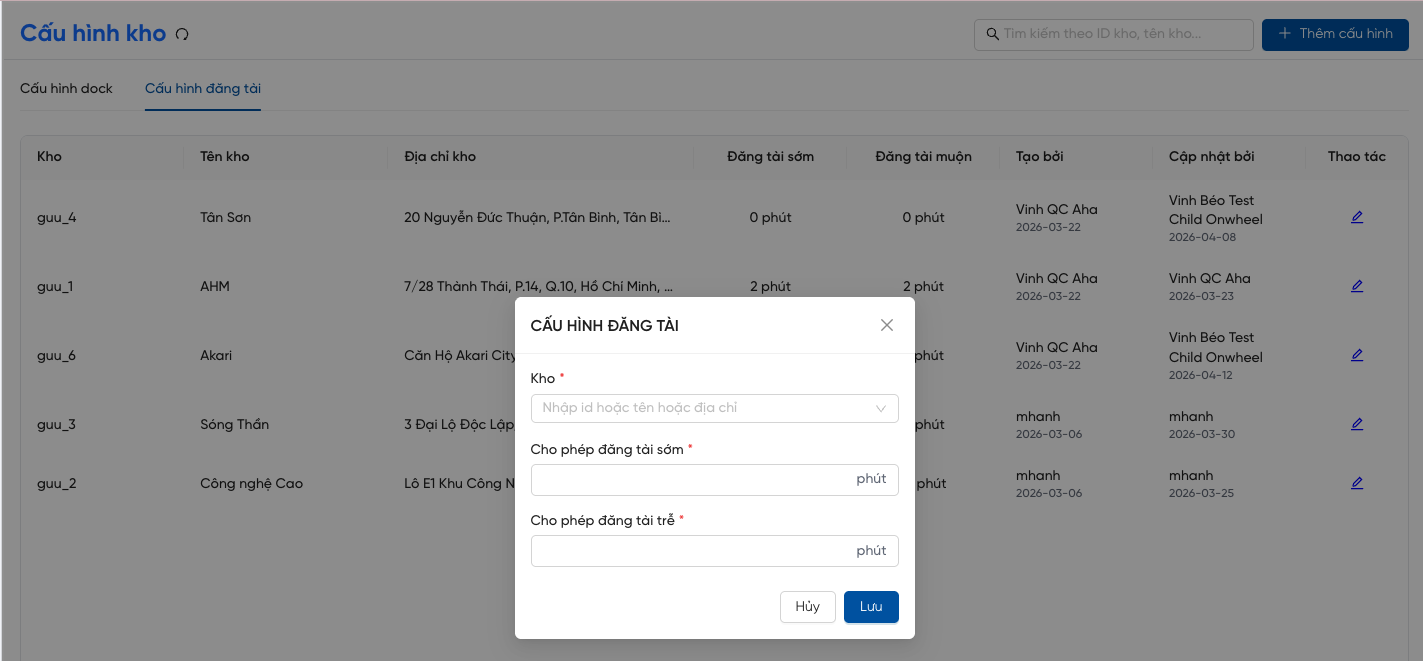
Check-in Configuration screen
| Step | Action |
|---|---|
| 1 | Click 'Add configuration' — Button is in the top-right corner. |
| 2 | Enter configuration details — Select the warehouse and enter the allowed late and early check-in windows. |
| 3 | Search and edit — The system supports searching by warehouse and editing an existing check-in configuration. |